 172eae61cb
This adds an interface for an Arduino-compatible LCD touchscreen.  The
screen module plugs directly on to the Arduino/chipKit shield
connector on the Arty A7.  Unfortunately, the slightly strange way the
resistive touchscreen is brought out (connected to the D0, D1, RS and
CS pins) combined with the 200 ohm protection resisters on the Arty
board mean that some hardware hacks to the module are necessary.  I
rewired mine so that D0 and D1 are on the A4 and A5 pins and the reset
is where D0 was (shield I/O 8).

This interface is suitable for boards with a HX8347 driver chip.  The
timing may not be quite suitable for other driver chips.

The interface is a byte which can be read and written at 0xc8050000,
containing an index register, and a 1-8 byte data register at
0xc8050008.  Reading at offsets 1 to 7 from those addresses yields the
same value as at offset 0.  Writing 64 bits to the data register
writes the bytes at offset 1, 0, 3, 2, 5, 4, 7, 6 in that order to the
driver chip.  This allows pixel data to be transferred using 64-bit
writes, ending up in the frame buffer in the expected order (for
16-bit pixels, the driver chip expects MS byte then LS byte).  32-bit
writes do 1, 0, 3, 2, and 16-bit writes do 1, 0.

The touchscreen support so far is a 1-byte register containing bits to
set RS, D0, D1 and CS high or low or make them tri-state.  There is
nothing to do analog conversions of the signal levels at this stage.

Signed-off-by: Paul Mackerras <paulus@ozlabs.org>

Microwatt
A tiny Open POWER ISA softcore written in VHDL 2008. It aims to be simple and easy to understand.
Simulation using ghdl
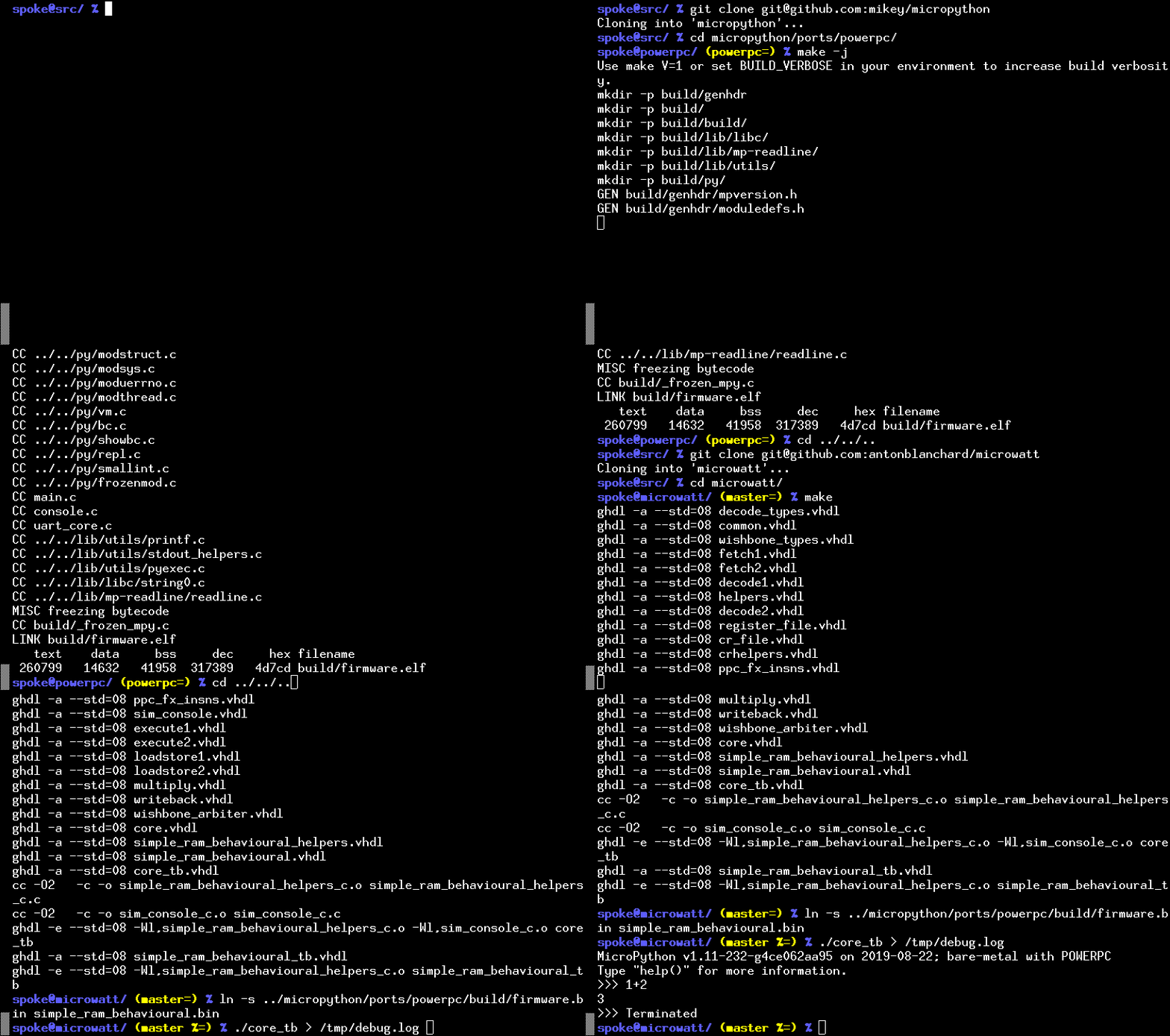
You can try out Microwatt/Micropython without hardware by using the ghdl simulator. If you want to build directly for a hardware target board, see below.
- Build micropython. If you aren't building on a ppc64le box you will need a cross compiler. If it isn't available on your distro grab the powerpc64le-power8 toolchain from https://toolchains.bootlin.com. You may need to set the CROSS_COMPILE environment variable to the prefix used for your cross compilers. The default is powerpc64le-linux-gnu-.
git clone https://github.com/micropython/micropython.git
cd micropython
cd ports/powerpc
make -j$(nproc)
cd ../../../
A prebuilt micropython image is also available in the micropython/ directory.
-
Microwatt uses ghdl for simulation. Either install this from your distro or build it. Microwatt requires ghdl to be built with the LLVM or gcc backend, which not all distros do (Fedora does, Debian/Ubuntu appears not to). ghdl with the LLVM backend is likely easier to build.
If building ghdl from scratch is too much for you, the microwatt Makefile supports using Docker or Podman.
-
Next build microwatt:
git clone https://github.com/antonblanchard/microwatt
cd microwatt
make
To build using Docker:
make DOCKER=1
and to build using Podman:
make PODMAN=1
- Link in the micropython image:
ln -s ../micropython/ports/powerpc/build/firmware.bin main_ram.bin
Or if you were using the pre-built image:
ln -s micropython/firmware.bin main_ram.bin
- Now run microwatt, sending debug output to /dev/null:
./core_tb > /dev/null
Synthesis on Xilinx FPGAs using Vivado
-
Install Vivado (I'm using the free 2019.1 webpack edition).
-
Setup Vivado paths:
source /opt/Xilinx/Vivado/2019.1/settings64.sh
- Install FuseSoC:
pip3 install --user -U fusesoc
Fedora users can get FuseSoC package via
sudo dnf copr enable sharkcz/danny
sudo dnf install fusesoc
- If this is your first time using fusesoc, initialize fusesoc. This is needed to be able to pull down fussoc library components referenced by microwatt. Run
fusesoc init
fusesoc fetch uart16550
fusesoc library add microwatt /path/to/microwatt
- Build using FuseSoC. For hello world (Replace nexys_video with your FPGA board such as --target=arty_a7-100): You may wish to ensure you have installed Digilent Board files or appropriate files for your board first.
fusesoc run --target=nexys_video microwatt --memory_size=16384 --ram_init_file=/path/to/microwatt/fpga/hello_world.hex
You should then be able to see output via the serial port of the board (/dev/ttyUSB1, 115200 for example assuming standard clock speeds). There is a know bug where initial output may not be sent - try the reset (not programming button) on your board if you don't see anything.
- To build micropython (currently requires 1MB of BRAM eg an Artix-7 A200):
fusesoc run --target=nexys_video microwatt
Linux on Microwatt
Mainline Linux supports Microwatt as of v5.14. The Arty A7 is the best tested platform, but it's also been tested on the OrangeCrab and ButterStick.
-
Use buildroot to create a userspace
A small change is required to glibc in order to support the VMX/AltiVec-less Microwatt, as float128 support is mandiatory and for this in GCC requires VSX/AltiVec. This change is included in Joel's buildroot fork, along with a defconfig:
git clone -b microwatt https://github.com/shenki/buildroot
cd buildroot
make ppc64le_microwatt_defconfig
make
The output is
output/images/rootfs.cpio. -
Build the Linux kernel
git clone https://git.kernel.org/pub/scm/linux/kernel/git/torvalds/linux.git
cd linux
make ARCH=powerpc microwatt_defconfig
make ARCH=powerpc CROSS_COMPILE=powerpc64le-linux-gnu- \
  CONFIG_INITRAMFS_SOURCE=/buildroot/output/images/rootfs.cpio -j`nproc`
The output is
arch/powerpc/boot/dtbImage.microwatt.elf. -
Build gateware using FuseSoC
First configure FuseSoC as above.
fusesoc run --build --target=arty_a7-100 microwatt --no_bram --memory_size=0The output is
build/microwatt_0/arty_a7-100-vivado/microwatt_0.bit. -
Program the flash
This operation will overwrite the contents of your flash.
For the Arty A7 A100, set
FLASH_ADDRESSto0x400000and pass-f a100.For the Arty A7 A35, set
FLASH_ADDRESSto0x300000and pass-f a35.microwatt/openocd/flash-arty -f a100 build/microwatt_0/arty_a7-100-vivado/microwatt_0.bit microwatt/openocd/flash-arty -f a100 dtbImage.microwatt.elf -t bin -a $FLASH_ADDRESS -
Connect to the second USB TTY device exposed by the FPGA
minicom -D /dev/ttyUSB1The gateware has firmware that will look at
FLASH_ADDRESSand attempt to parse an ELF there, loading it to the address specified in the ELF header and jumping to it.
Testing
- A simple test suite containing random execution test cases and a couple of micropython test cases can be run with:
make -j$(nproc) check
Issues
- There are a few instructions still to be implemented:
- Vector/VMX/VSX